Getting Started
System Requirements and Platforms
Case Digestor is built as a modernized Progressive Web App (PWA), ensuring high performance and broad compatibility without the need for traditional app store updates. To ensure an optimal experience, the following system requirements are recommended:
- Browsers: Current versions of Google Chrome, Apple Safari, or Microsoft Edge.
- Operating Systems:
- Desktop: MacOS, Windows, or Linux.
- Mobile: iOS (14.0+) or Android (8.0+).
- Connectivity: A stable internet connection is required for AI-powered digestion and library synchronization, though basic reading and organizational tasks support offline modes once cached.
Accessing and Installing the PWA
The application is accessed directly via casedigestor.app. Unlike legacy software, you do not need to download an installer. Instead, you can "install" the platform to your device for a near-native experience:
- On Mobile (iOS/Android): Open the site in Safari or Chrome, tap the "Share" or "Menu" icon, and select "Add to Home Screen."
- On Desktop (Chrome/Edge): Click the "Install" icon located on the right side of the address bar.
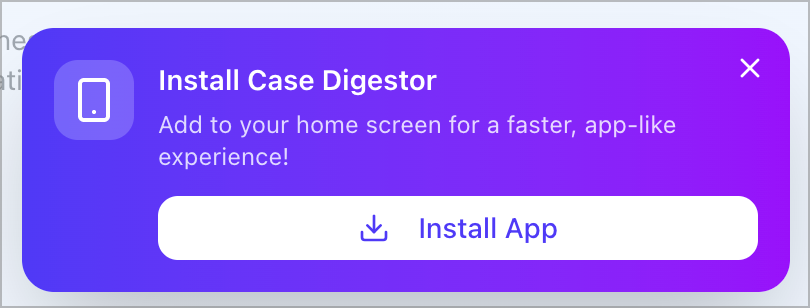
Key Benefits of PWA Installation:
- Dedicated Window: Runs in its own standalone window, free from browser tabs.
- Offline Access: Faster load times and accessibility for previously viewed content.
- Persistence: The app icon remains on your dock or home screen for immediate access.
Account Creation and Authentication
Security and data isolation are handled through a secure authentication layer. New users can initialize their workspace through two primary methods:
- OAuth Integration (Recommended): Securely sign in using existing Google credentials. This provides the fastest onboarding experience and simplifies credential management.
- Email & Password: Traditional registration using a verified email address.
All user data, including notes and personal folders, are protected via Row-Level Security (RLS), ensuring that your research remains private and isolated from other users.
First-Time Login and Interface Orientation
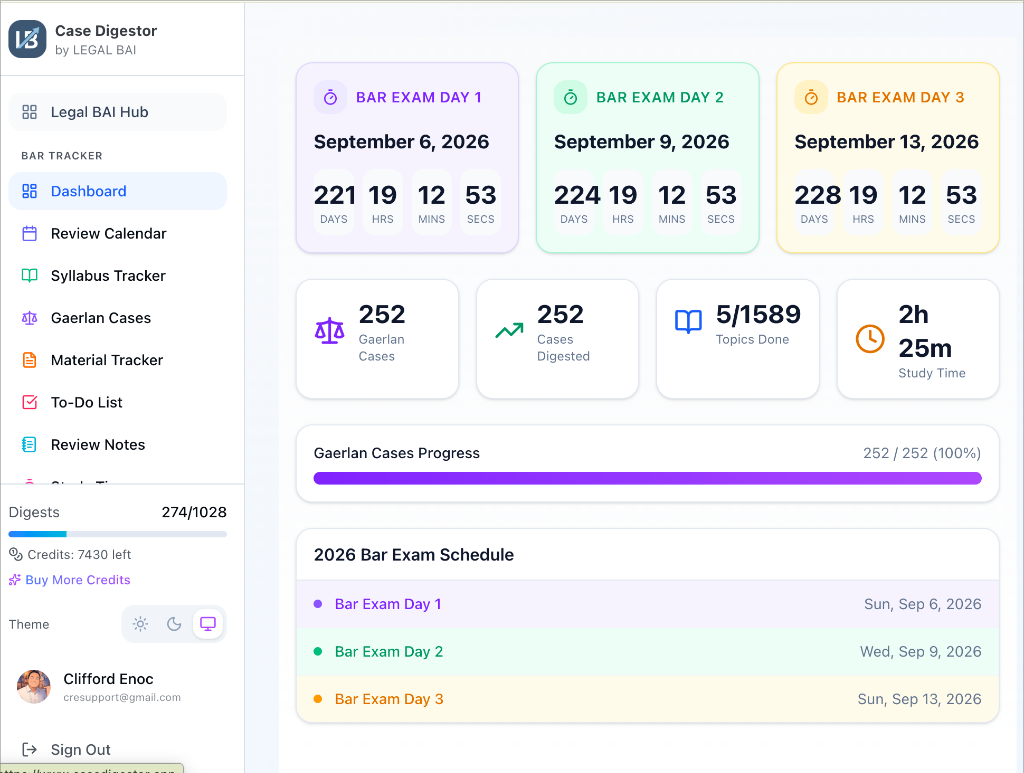
Upon your first login, you will land on the Command Hub—the central nexus of the Case Digestor ecosystem. The interface is designed to be intuitive yet powerful:
- The Hub Dashboard: Provides quick access to specialized modules such as the Syllabus, Bar Tracker, and Jurisprudence Library.
- Search Bar: Centrally located at the top for instant semantic or citation-based lookup.
- Navigation Sidebar: Allows quick toggling between your personal workspace, favorites, and recent activity.
- History & Tutorials: The right sidebar displays your most recently accessed cases and folders and provides quick-access links to Video Tutorials to help you master the platform's features.
- Profile Menu: Located in the top right, where you can access Your Profile settings, credit balances, and subscription management.
Profile & Settings
Your profile serves as the command center for your subscription, credits, and account personalization. Accessed via the top-right menu throughout the application, it offers a unified view of your current standing and preferences.
Credit Balance & Subscription
Case Digestor operates on a flexible credit system tailored to your needs. The dashboard prominently displays your Available Credits alongside a usage bar tracking your consumption against your total allocation.
- Plan Badge: Indicates your current tier (e.g., Premium Plan).
- Bonus Credits: Shows additional credits earned through referrals or promotions.
Credit Costs by Feature
Different AI-powered actions consume varying amounts of credits based on their computational complexity. A transparent breakdown is always available within your profile:
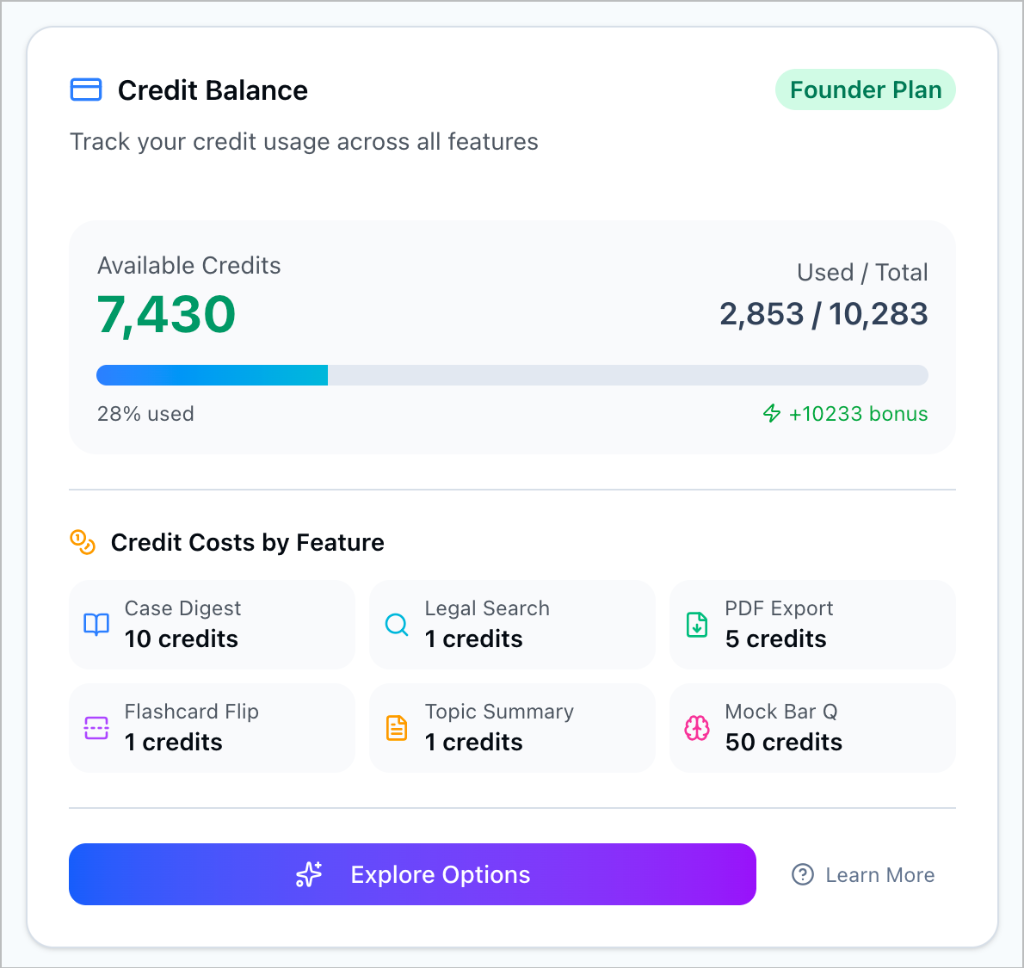
- Case Digest: 10 credits
- Legal Search: 1 credit
- PDF Export: 5 credits
- Flashcard Flip: 1 credit
- Topic Summary: 1 credit
- Mock Bar Q: 50 credits
The credit costs and settings displayed above are examples from a specific test admin account. Actual costs and plan details may vary depending on your individual subscription.
Referrals & Bonuses
Earn bonus credits by inviting peers to the platform. Your unique Referral Code and link can be copied or shared directly.
- Sign-ups: Earn for every user who registers using your code.
- Upgrades: Receive a larger bonus when your referrals upgrade to a paid plan.
Account Management
- Personal Information: Update your name and "About Me" bio.
- Appearance: Toggle between Light, Dark, or System Sync modes to suit your reading environment.
- Security: Manage your Google Account connection or change your password.
- Data Control: Export all your personal data (notes, calendars, progress) or permanently delete your account via the "Danger Zone".
Recommended First Steps
To maximize the utility of the platform from day one, we recommend the following workflow for new users:
-
Configure Your Profile: Ensure your name and professional/student status are updated in the Profile section to tailor AI responses.
-
Explore the Syllabus: Navigate to the Syllabus module to see how legal doctrines are structured according to the latest Philippine Bar requirements.
-
Generate a Sample Digest: Locate a landmark case (e.g., Estrada v. Desierto) and use the AI tool to generate a summary. This will help you understand the credit system and the depth of the AI's analytical capabilities.
-
Create Your First Folder: Start organizing your work immediately by creating a folder in the Workspace.
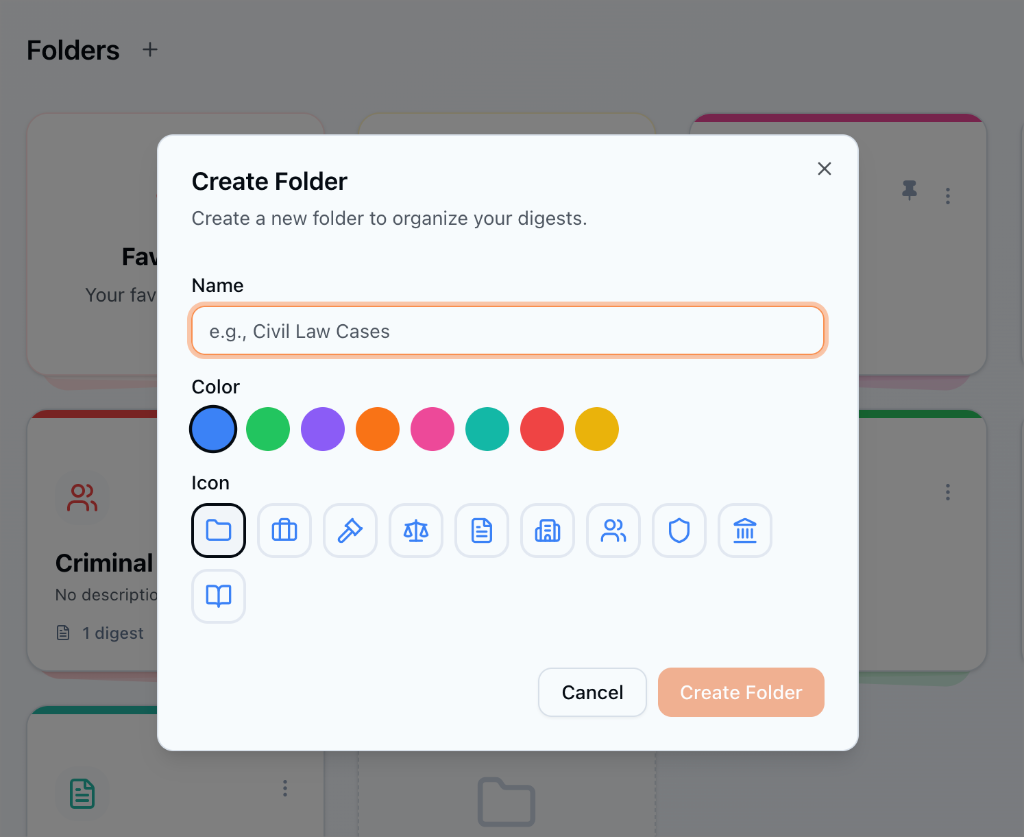
- Name: Give your folder a descriptive title (e.g., "Civil Law Review").
- Color coding: Assign a distinct color for visual grouping.
- Iconography: Select a representative icon (e.g., Gavel for Criminal Law, Building for Property).